> For the complete documentation index, see [llms.txt](https://docs.nagara.network/llms.txt). Markdown versions of documentation pages are available by appending `.md` to page URLs; this page is available as [Markdown](https://docs.nagara.network/deploy-your-first-contract.md).
# Deploy your first contract
This walkthrough takes you from zero to a live smart contract on Nagara Testnet, using only your browser. No installs besides a wallet, no command line. It takes about 10 minutes.
You will:
1. Add Nagara Testnet to MetaMask
2. Get free test tokens
3. Write and compile a contract in Remix
4. Deploy it and interact with it
5. Find it on the block explorer
{% hint style="info" %}
**Before you start**, install the [MetaMask](https://metamask.io/download/) browser extension and create a wallet. Use a fresh wallet for testing — never one that holds real funds.
The screenshots below were taken with MetaMask 13.50 and Remix 2.6.5. If your version looks slightly different, the buttons have the same names.
{% endhint %}
## 1. Add Nagara Testnet to MetaMask
{% stepper %}
{% step %}
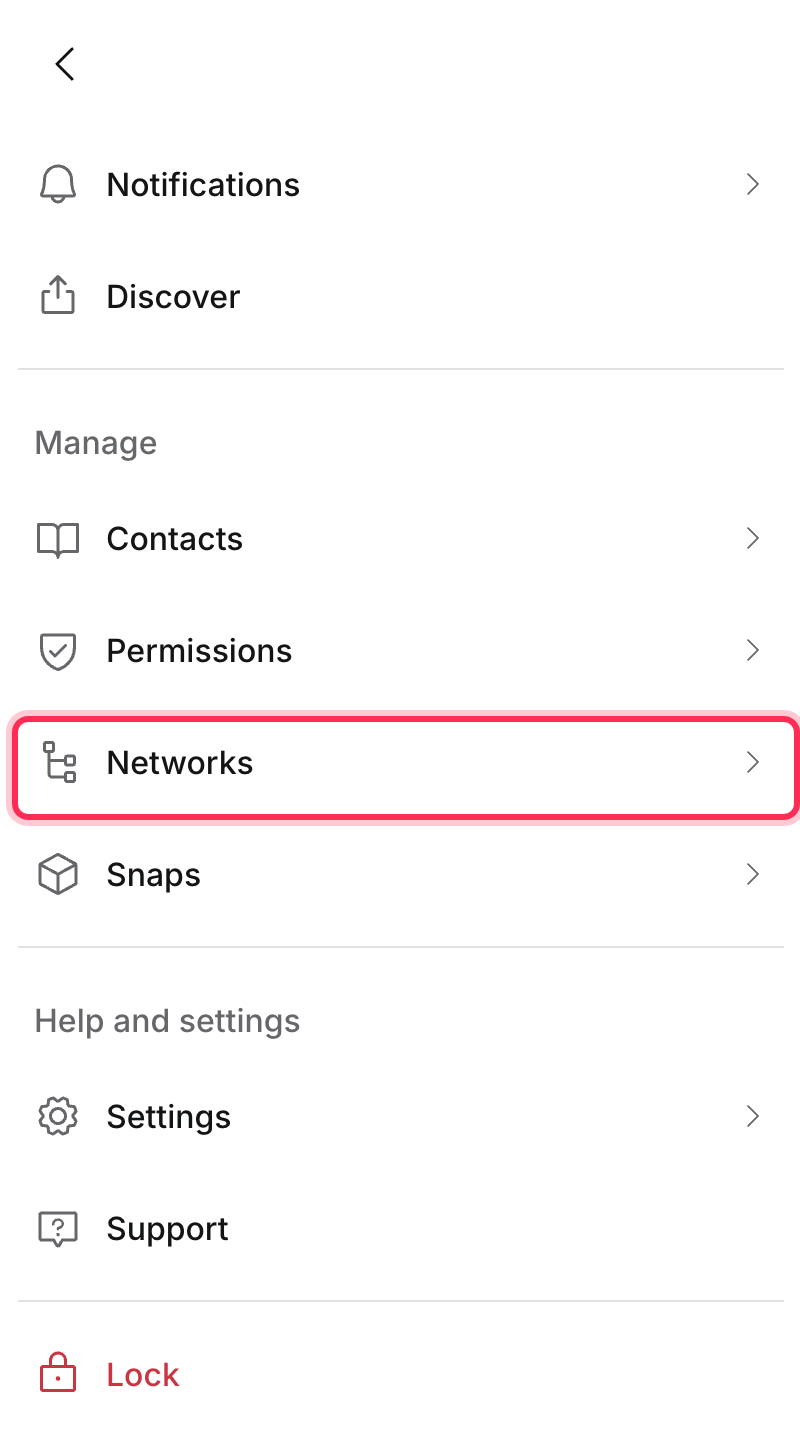
### Open the networks menu
Open MetaMask, click the menu icon (☰) in the top-right corner, then choose **Networks**.
{% endstep %}
{% step %}
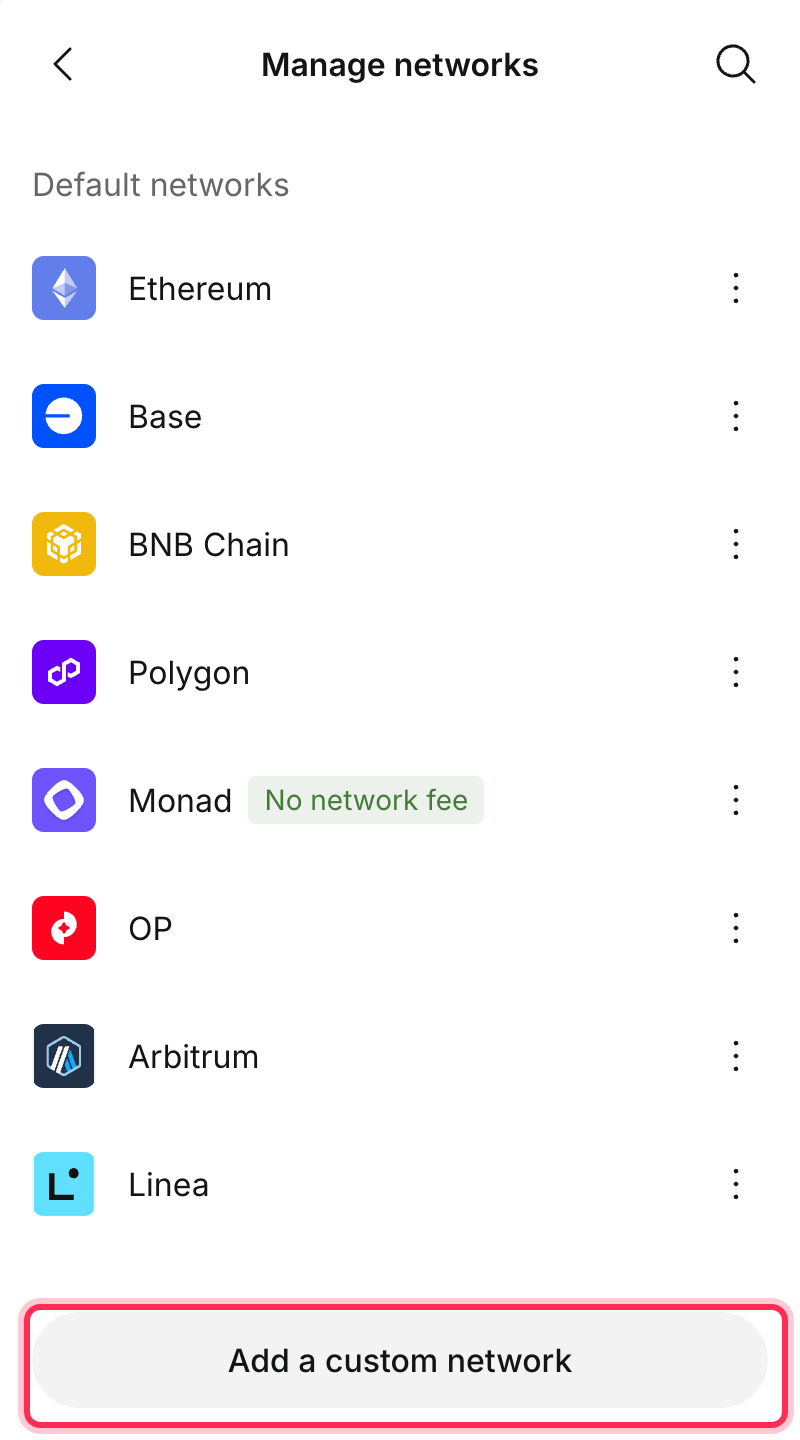
### Add a custom network
Scroll to the bottom of the list and click **Add a custom network**.
{% endstep %}
{% step %}
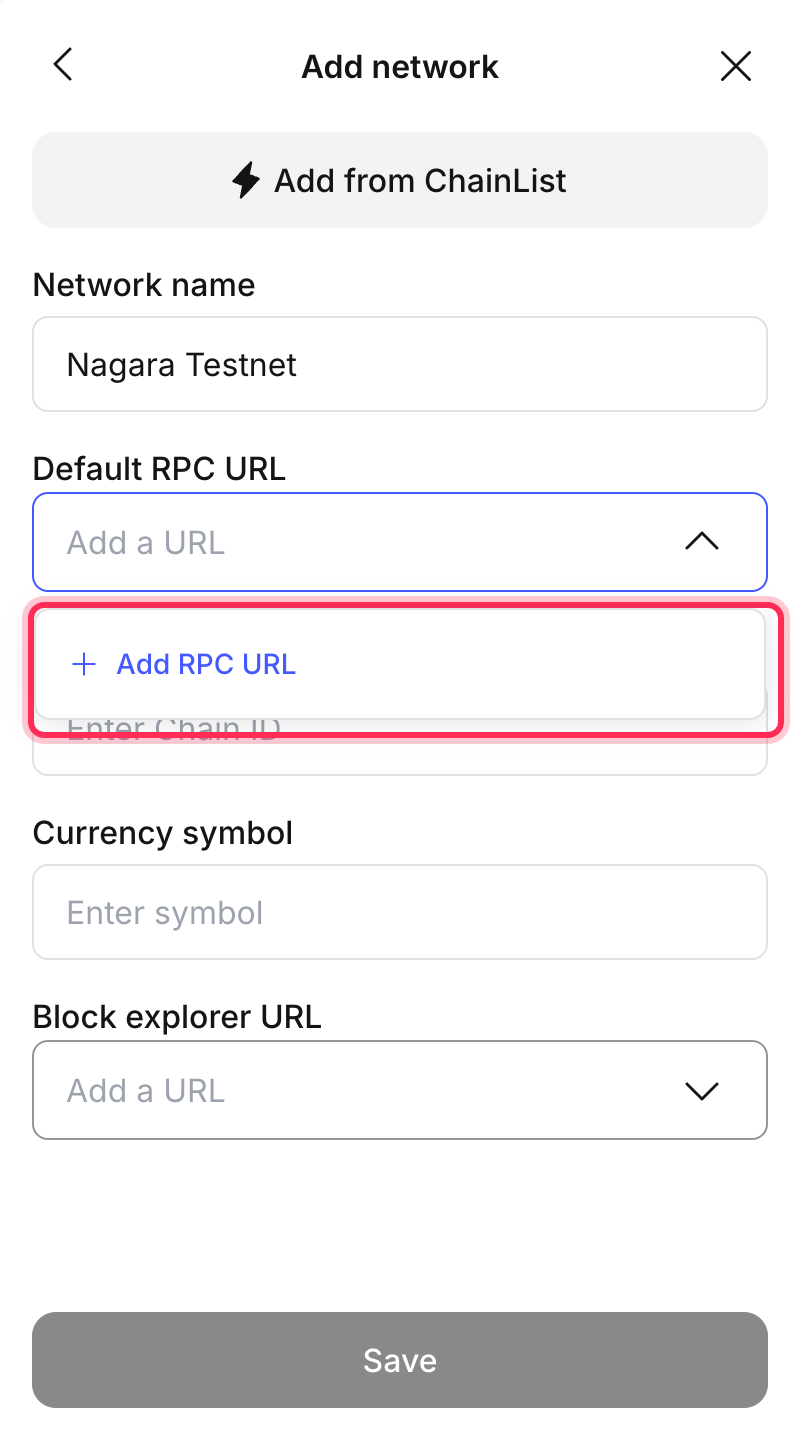
### Enter the network name and RPC URL
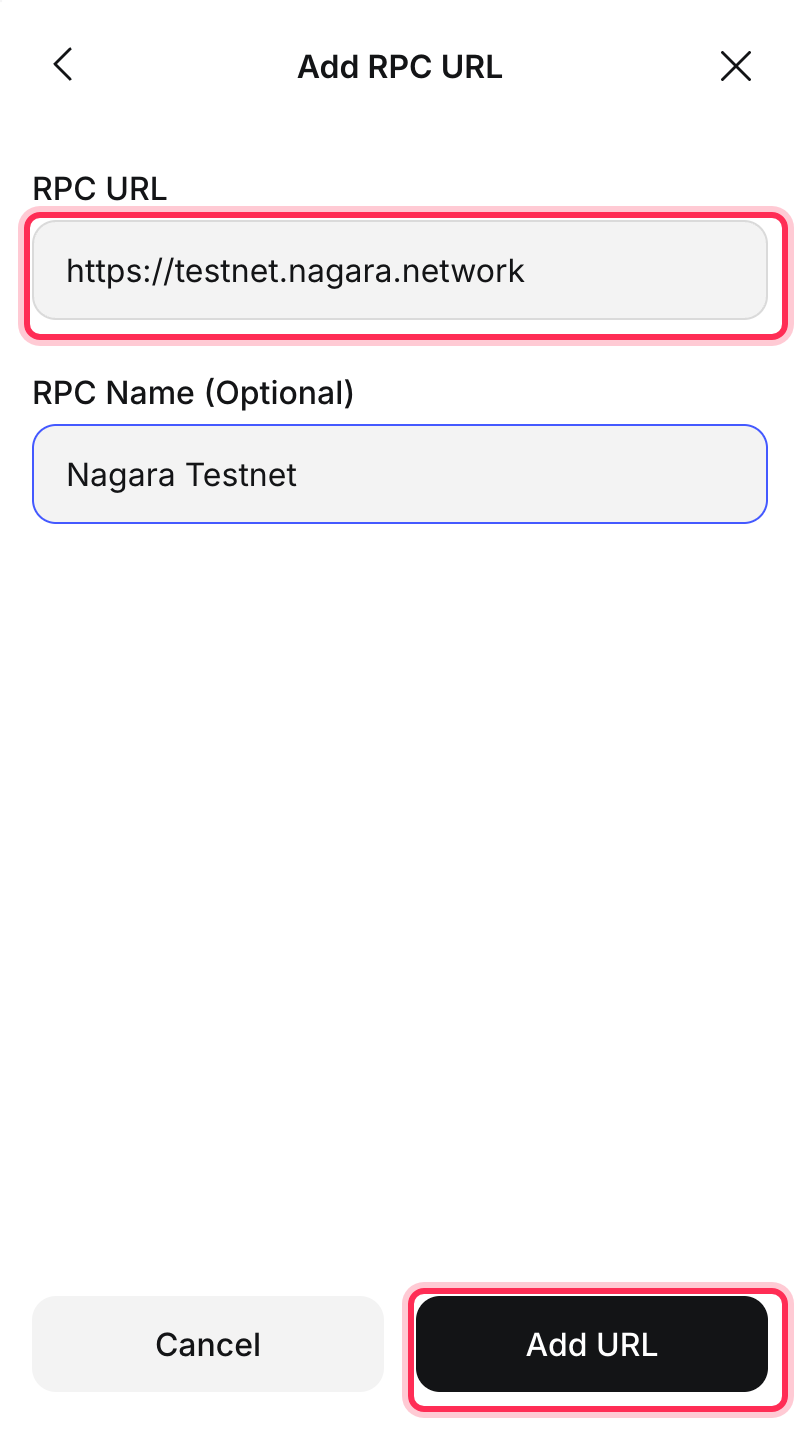
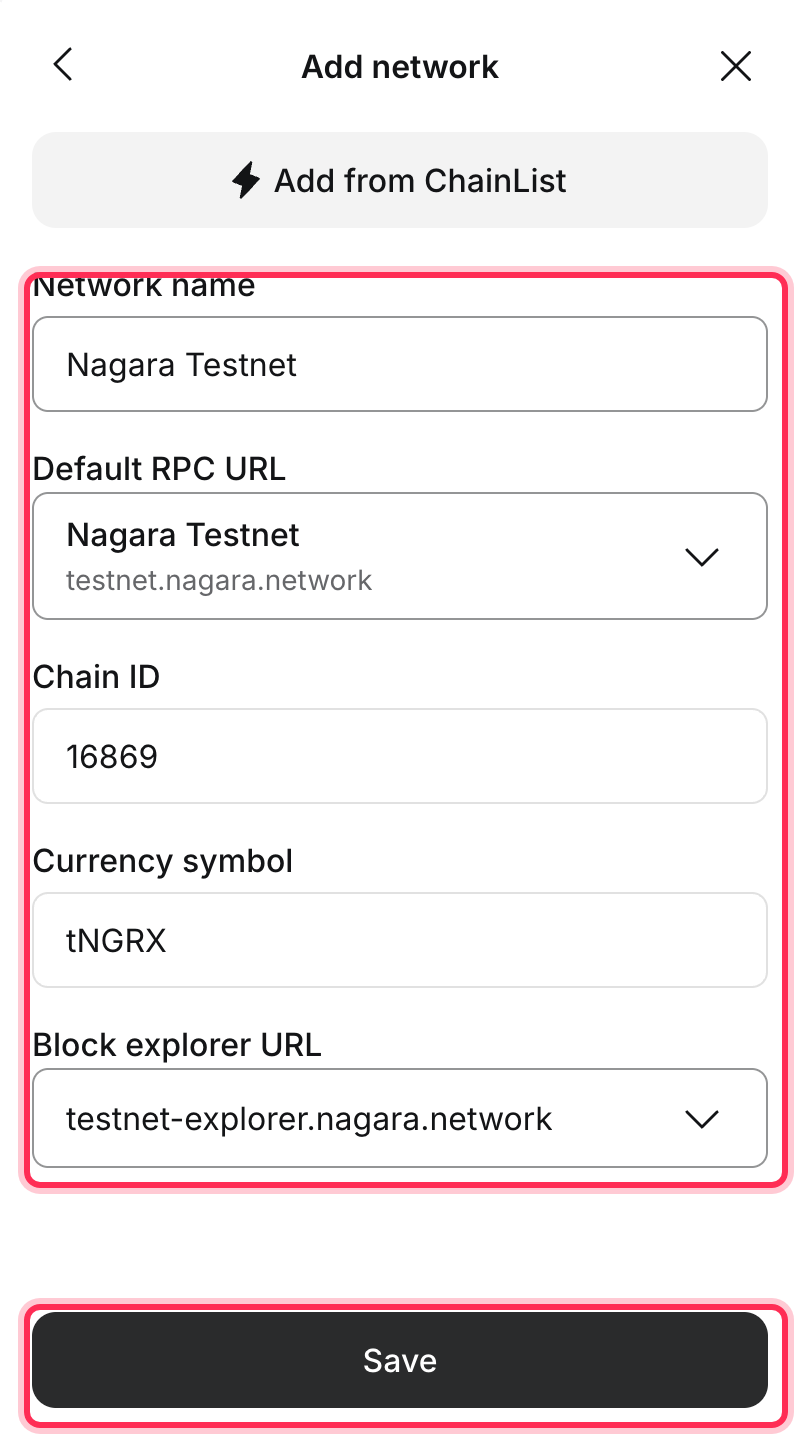
Type `Nagara Testnet` as the **Network name**. Then open the **Default RPC URL** dropdown and click **Add RPC URL**.
Paste `https://testnet.nagara.network` into **RPC URL** and click **Add URL**.
{% endstep %}
{% step %}
### Fill in the rest and save
Complete the form with these values, then click **Save**:
* **Chain ID:** `16869`
* **Currency symbol:** `tNGRX`
* **Block explorer URL:** `https://testnet-explorer.nagara.network` (open the dropdown and choose **Add a block explorer URL**)
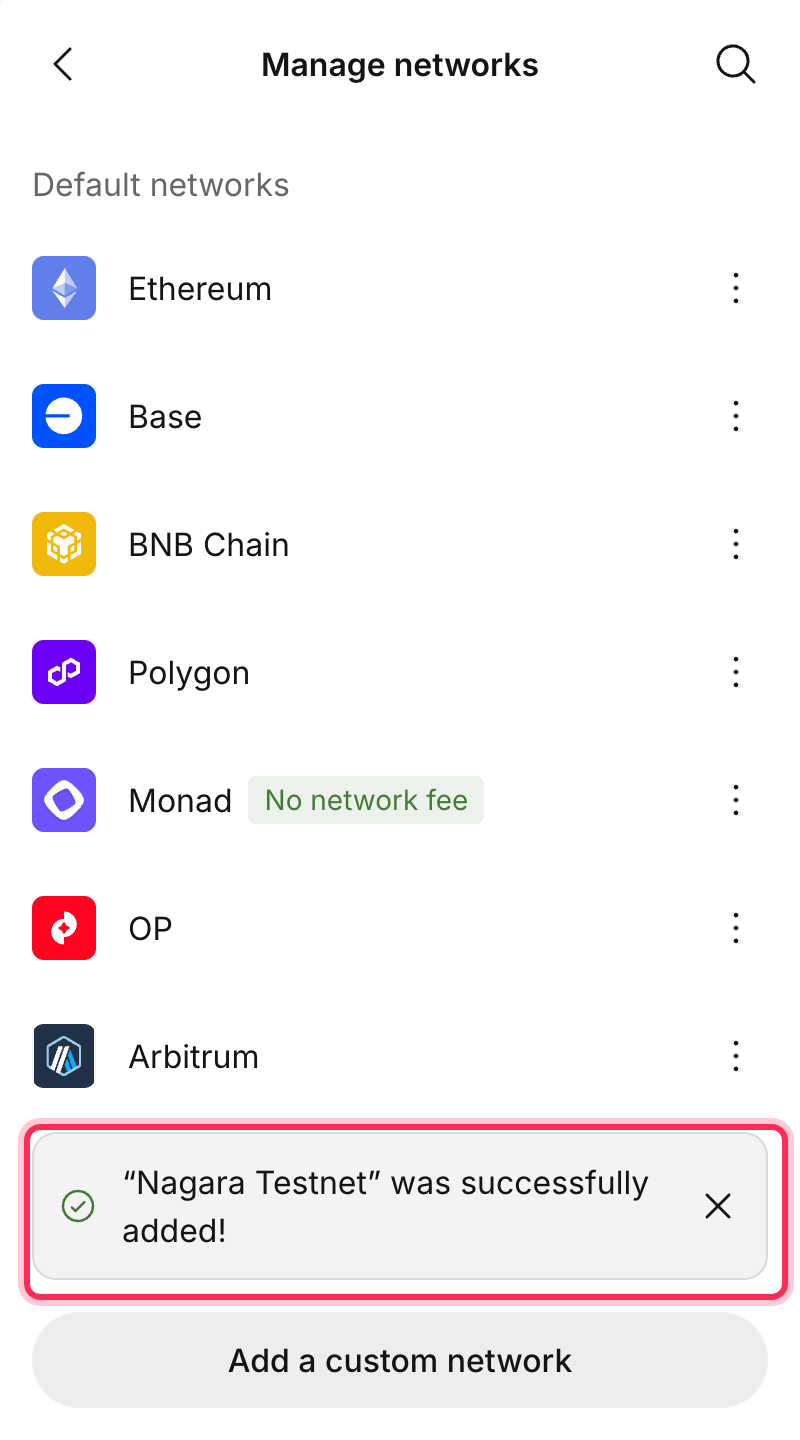
MetaMask confirms that the network was added.
{% endstep %}
{% endstepper %}
## 2. Get free test tokens
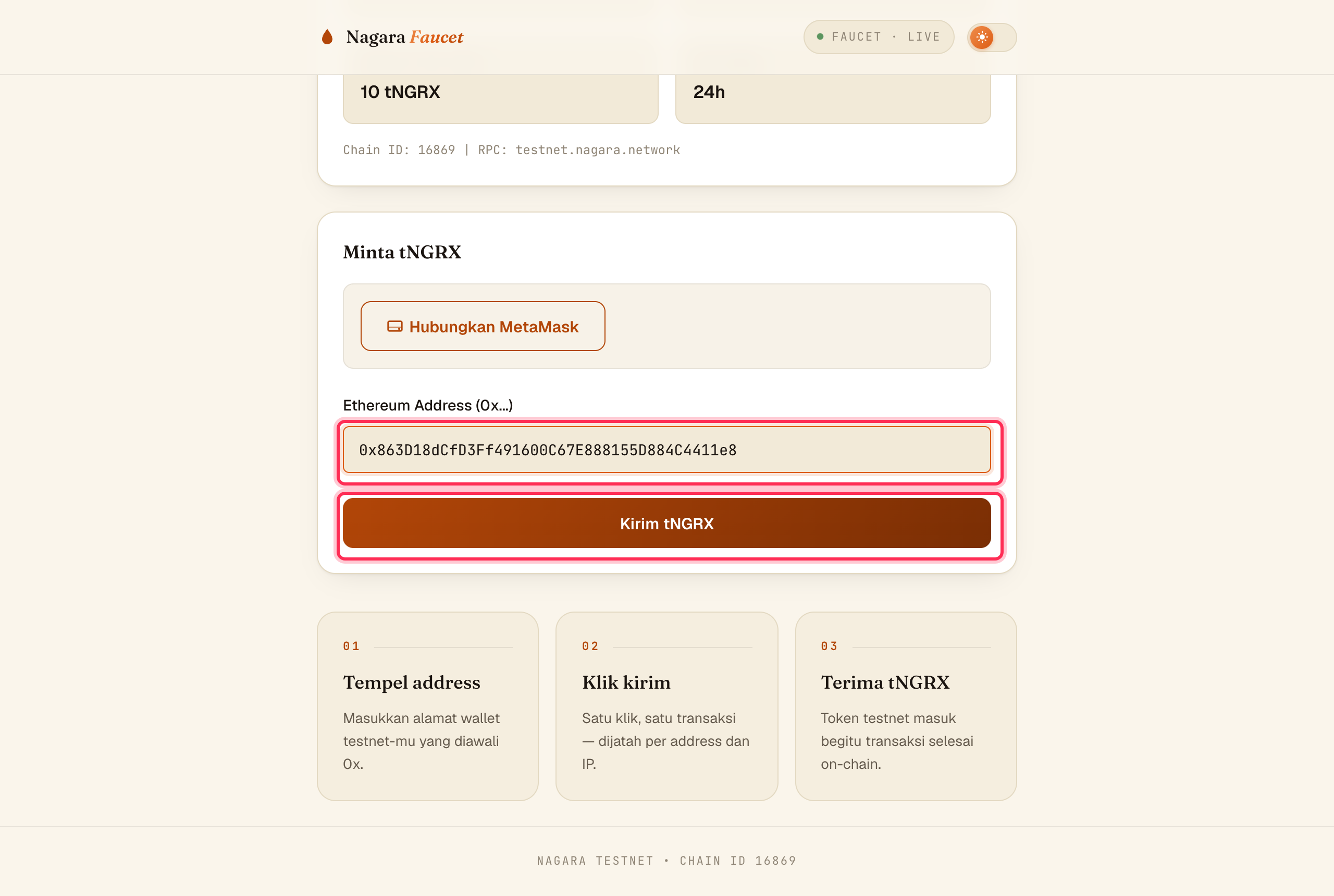
Deploying a contract costs a small fee in `tNGRX`, the testnet token. Get some for free from the faucet.
1. In MetaMask, click your account address at the top to copy it.
2. Open the faucet at [bagi-bagi.nagara.network](https://bagi-bagi.nagara.network), paste the address and click **Kirim tNGRX** ("send tNGRX").
The faucet sends 10 tNGRX per address every 24 hours.
After a few seconds the balance appears in MetaMask. 10 tNGRX is enough for this whole walkthrough several times over: the deployment below cost about 2 tNGRX and each later transaction about 0.13 tNGRX.
## 3. Write the contract in Remix
[Remix](https://remix.ethereum.org) is a code editor for Solidity that runs in your browser.
{% stepper %}
{% step %}
### Create a new file
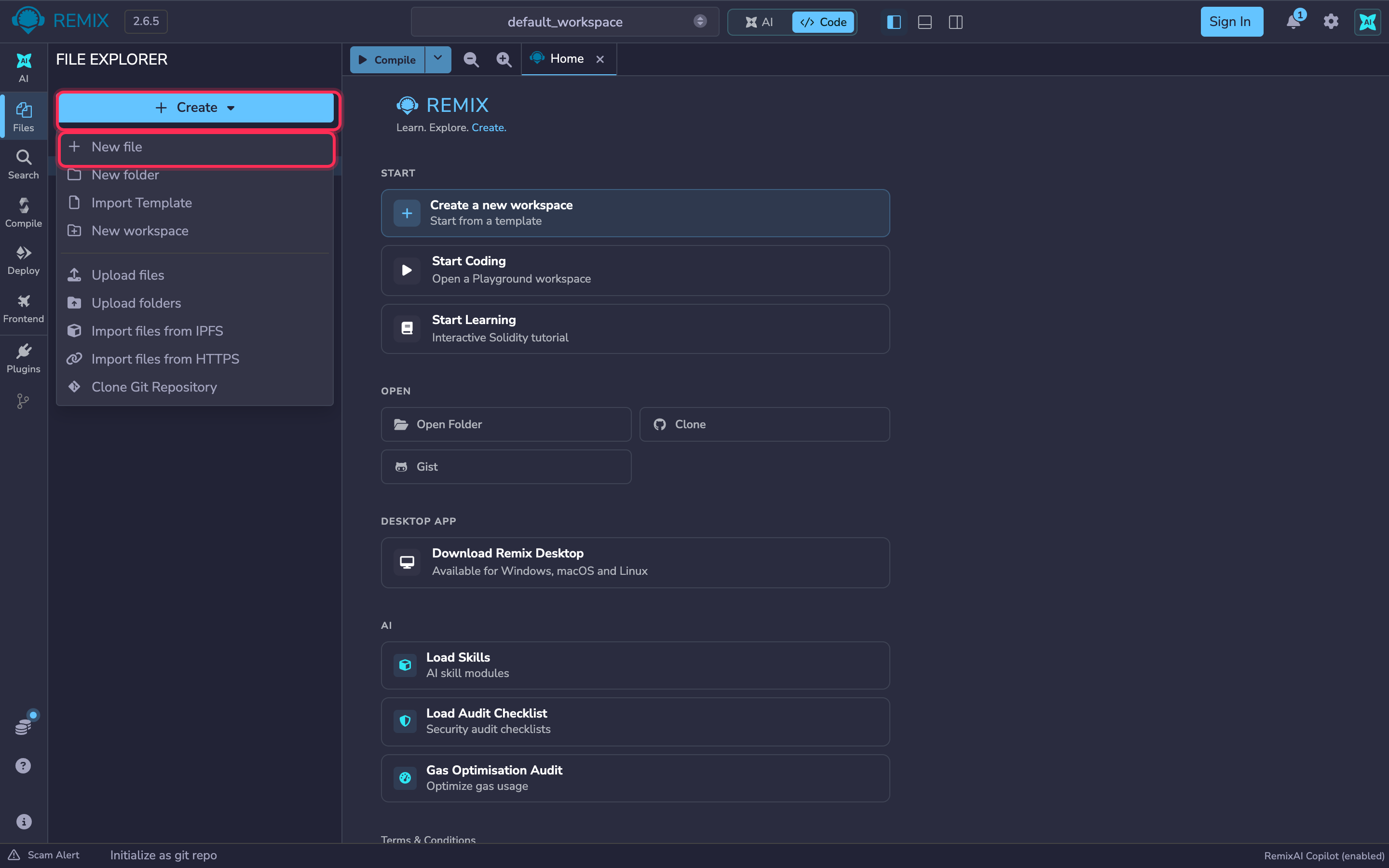
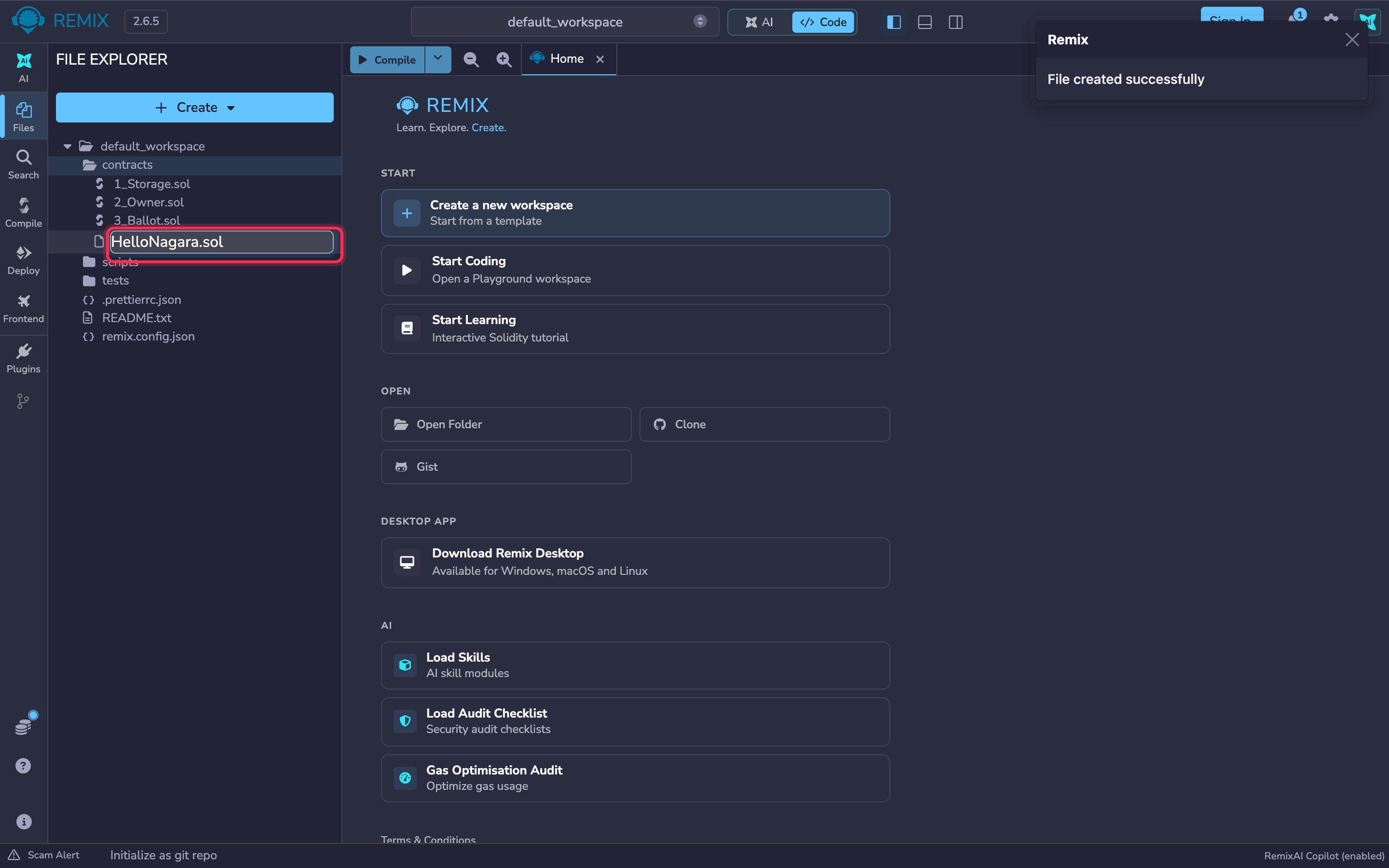
Open [remix.ethereum.org](https://remix.ethereum.org). Close any welcome pop-ups. In the **File Explorer** on the left, click the **contracts** folder, then **Create → New file**.
{% endstep %}
{% step %}
### Name it
Type `HelloNagara.sol` and press **Enter**.
{% endstep %}
{% step %}
### Paste the code
The file opens in the editor. Paste this contract into it:
```solidity
// SPDX-License-Identifier: MIT
pragma solidity ^0.8.24;
contract HelloNagara {
string public message = "Hello, Nagara!";
function setMessage(string calldata newMessage) external {
message = newMessage;
}
}
```
It stores one piece of text on the blockchain. Anyone can read `message`, and `setMessage` changes it.
{% endstep %}
{% endstepper %}
## 4. Compile
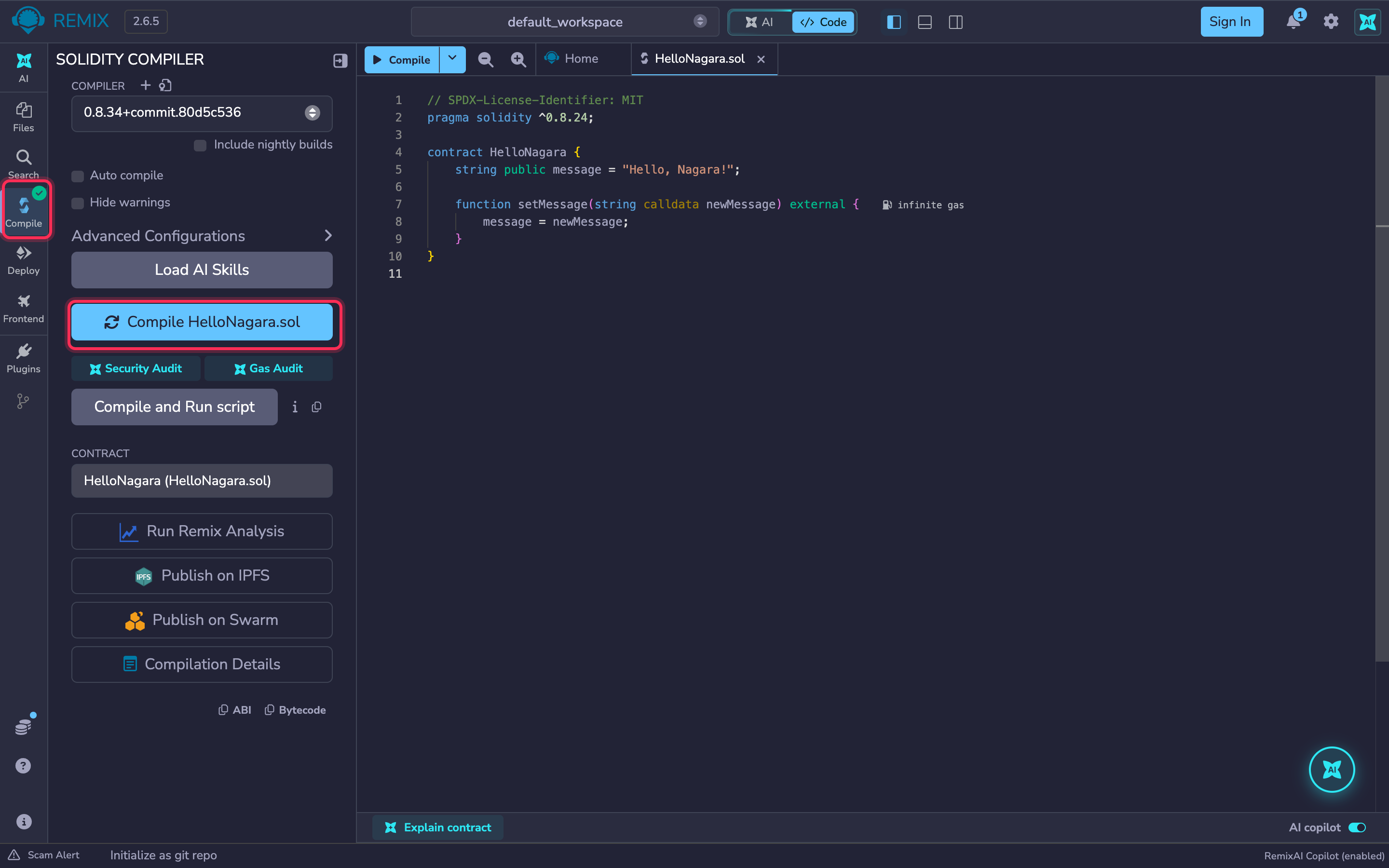
Click the **Solidity compiler** icon in the left sidebar, then **Compile HelloNagara.sol**. A green check mark on the icon means it compiled successfully. The default compiler settings work on Nagara.
## 5. Connect MetaMask
{% stepper %}
{% step %}
### Choose MetaMask as the environment
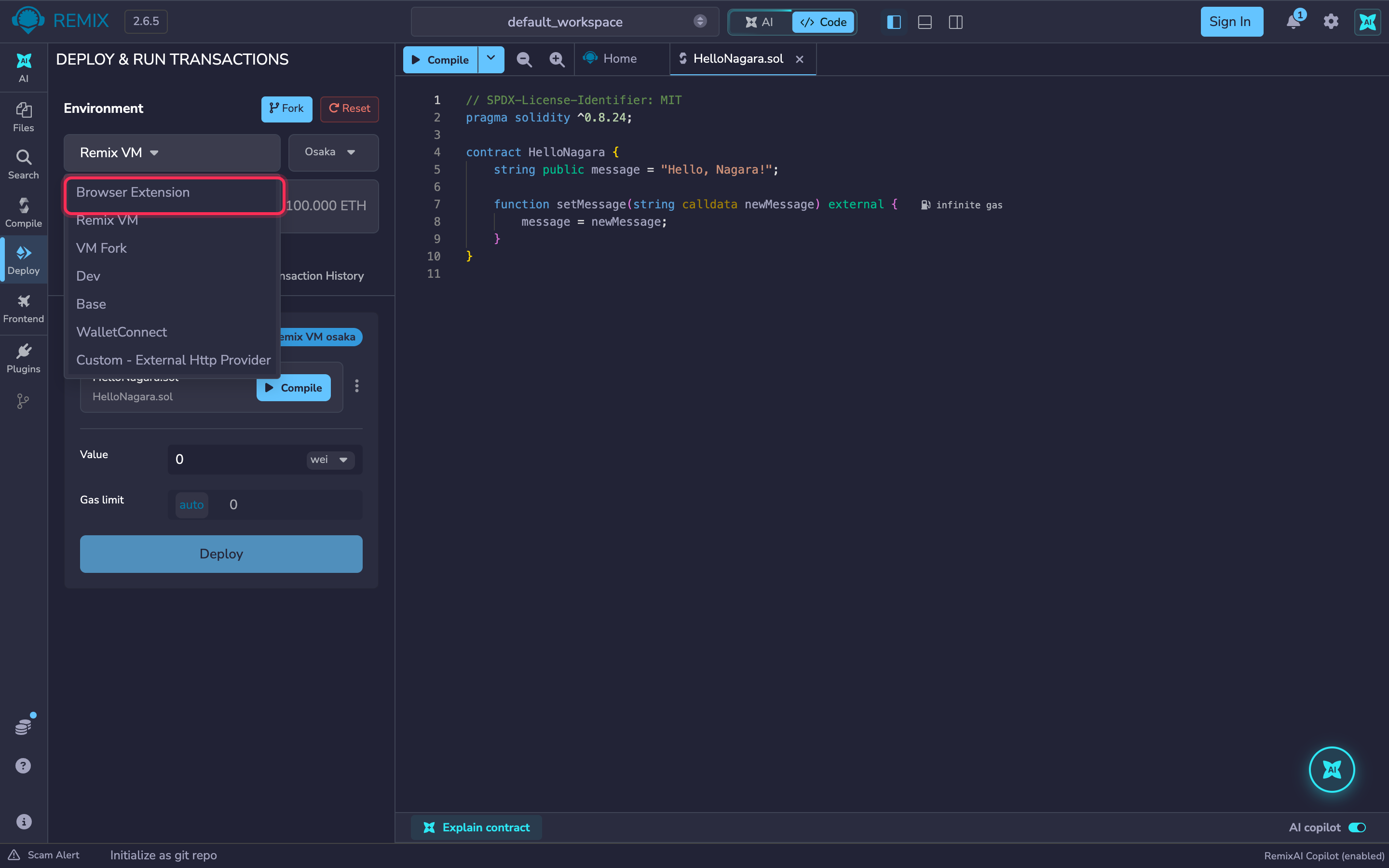
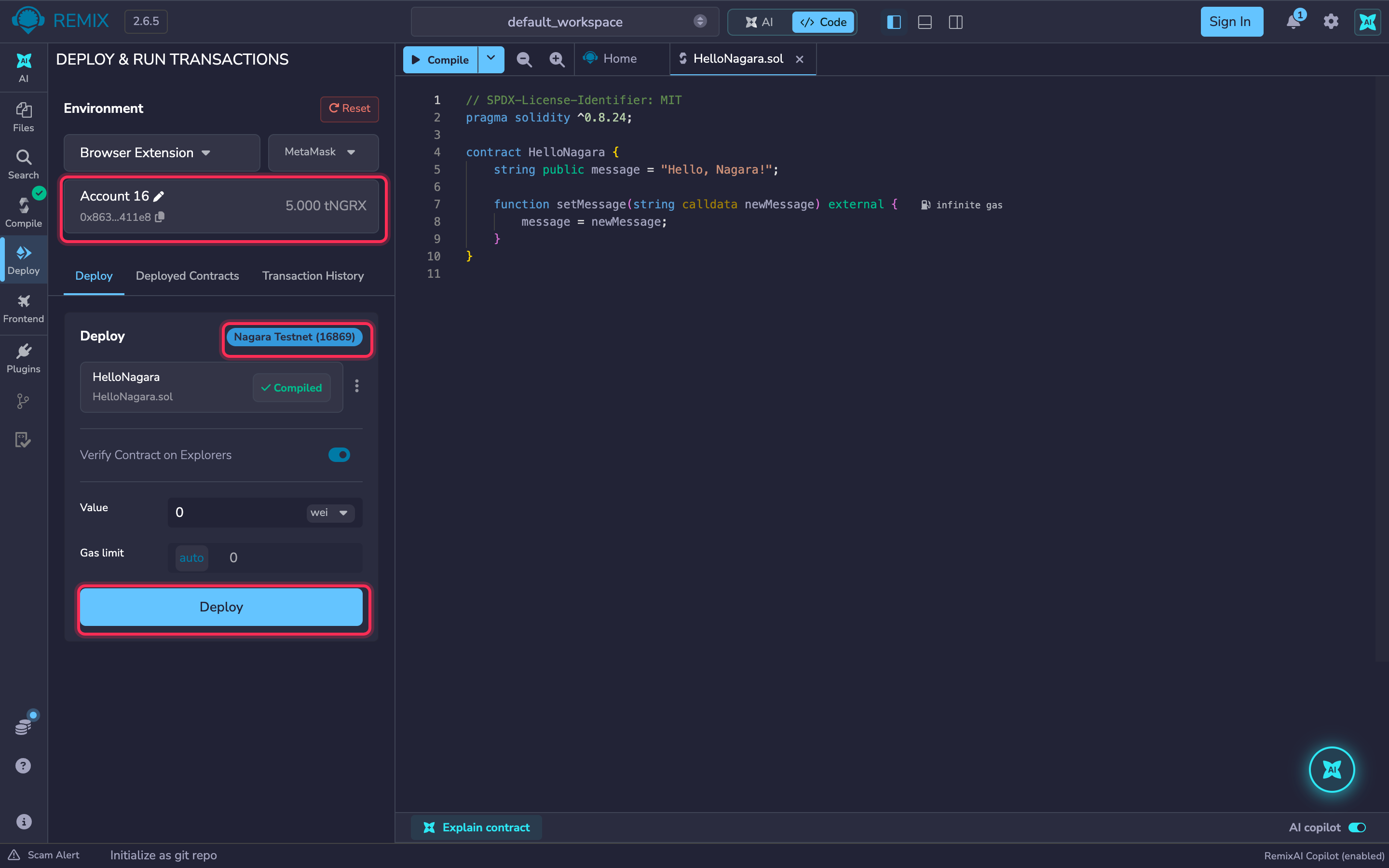
Click the **Deploy & run transactions** icon in the left sidebar. Open the **Environment** dropdown and choose **Browser Extension**.
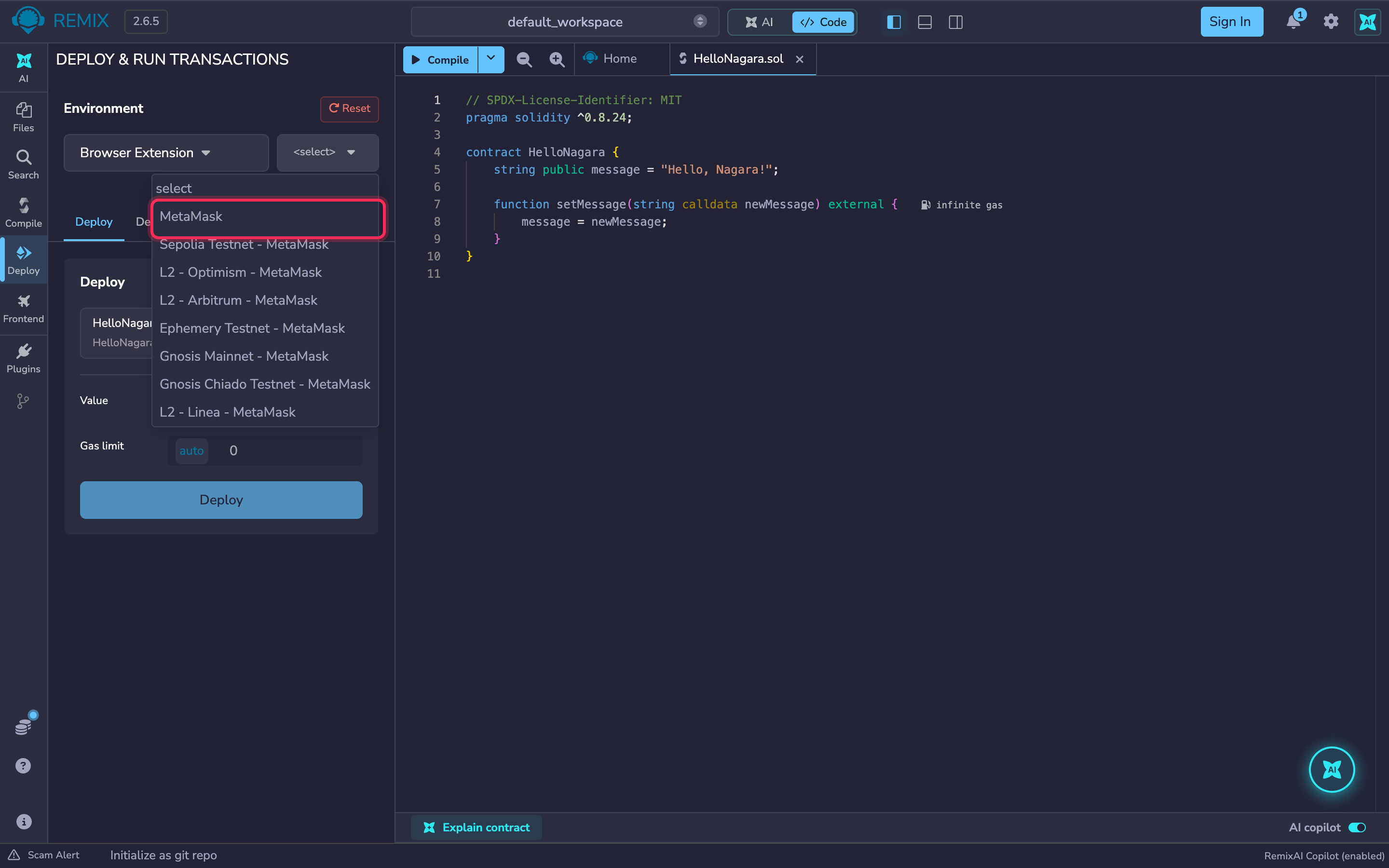
In the dropdown next to it, choose **MetaMask**.
{% endstep %}
{% step %}
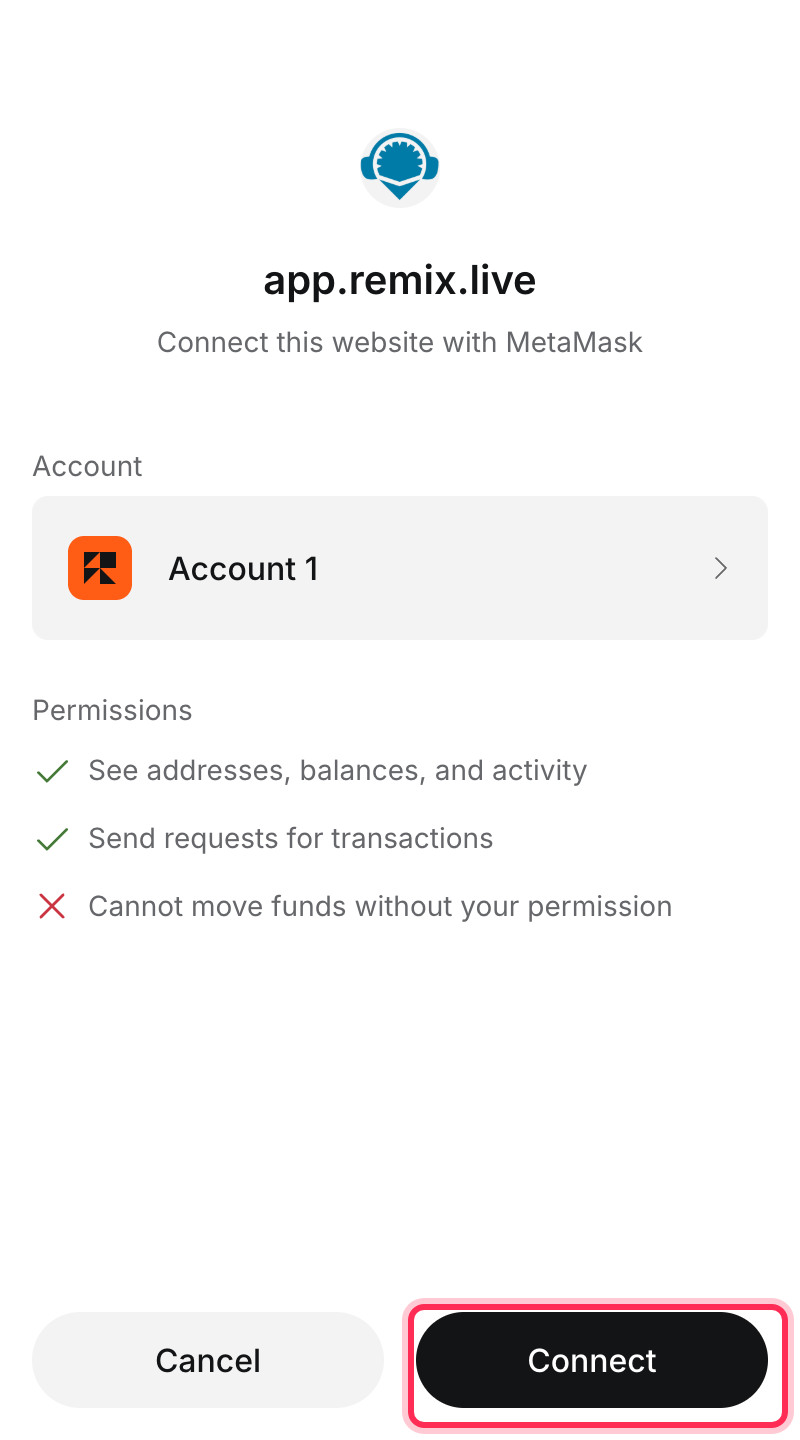
### Approve the connection
MetaMask asks whether Remix may connect to your account. Click **Connect**.
{% endstep %}
{% step %}
### Check the network
Remix now shows your account, its tNGRX balance and, above the **Deploy** button, the network: it must read **Nagara Testnet (16869)**.
{% hint style="warning" %}
If it shows another network, such as **Main (1)**, MetaMask is using a different network for the Remix site. Click the MetaMask icon in your browser toolbar while the Remix tab is open, switch the network to **Nagara Testnet**, and check Remix again.
{% endhint %}
{% endstep %}
{% endstepper %}
## 6. Deploy
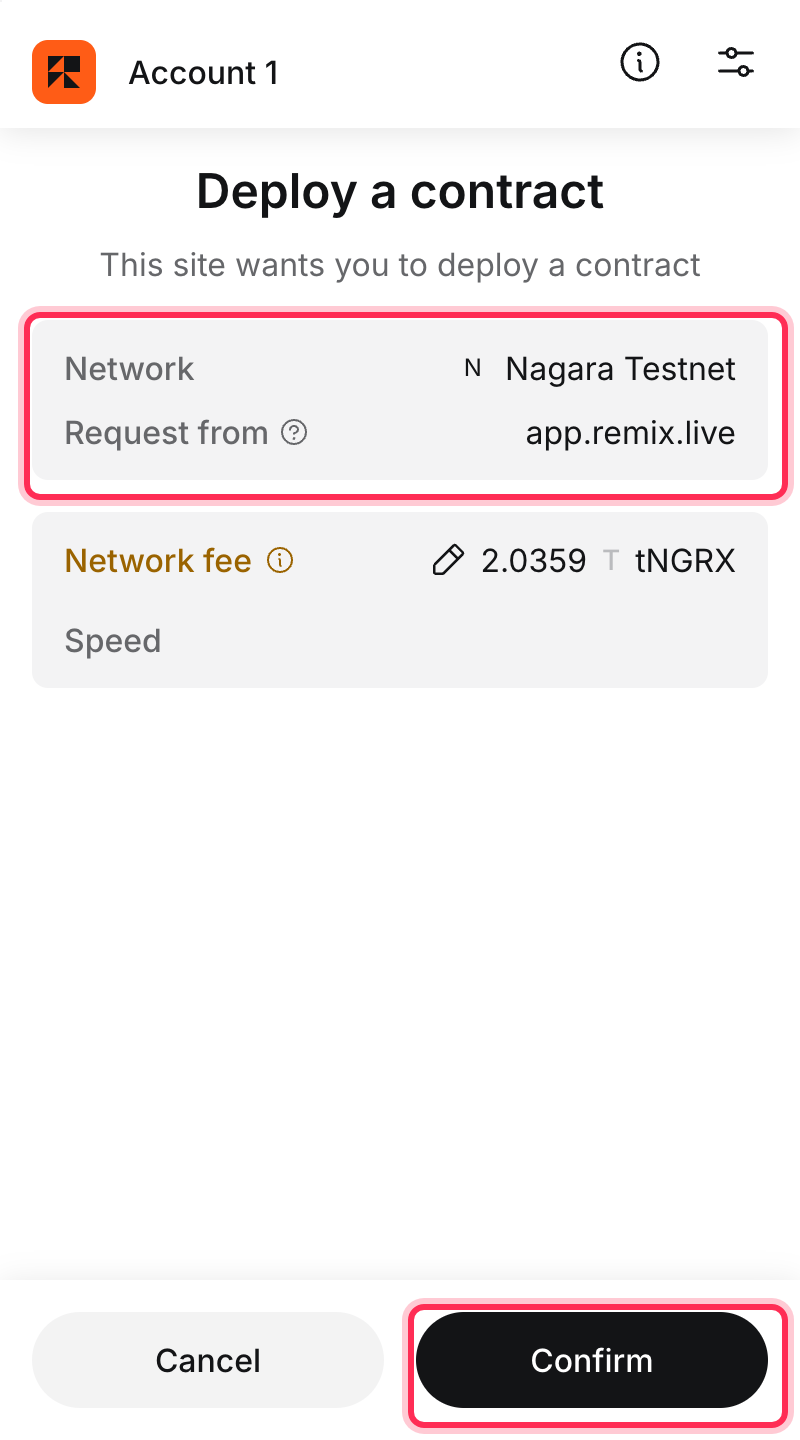
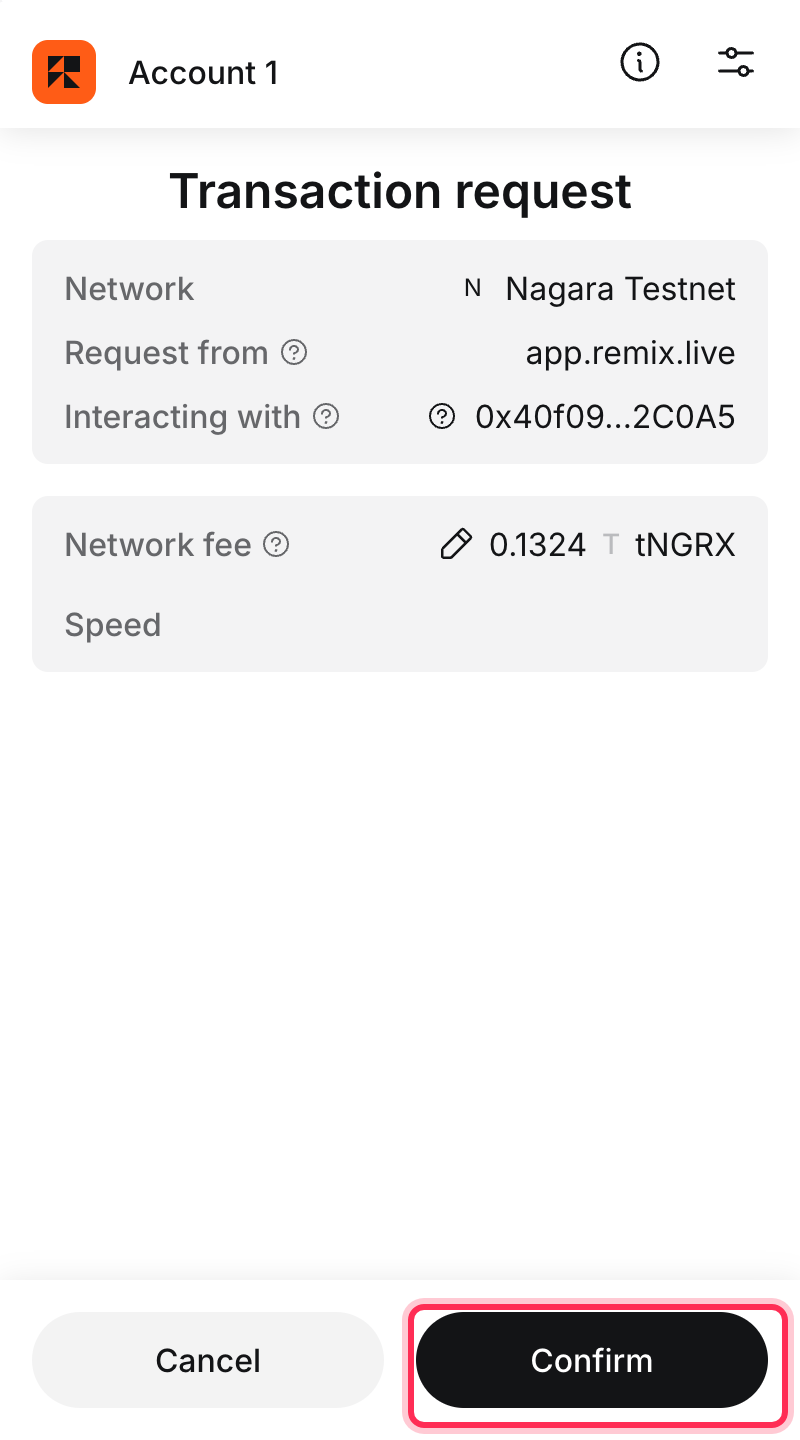
Click **Deploy**. MetaMask shows the request: check that the network is **Nagara Testnet** and click **Confirm**.
The network fee is paid in tNGRX.
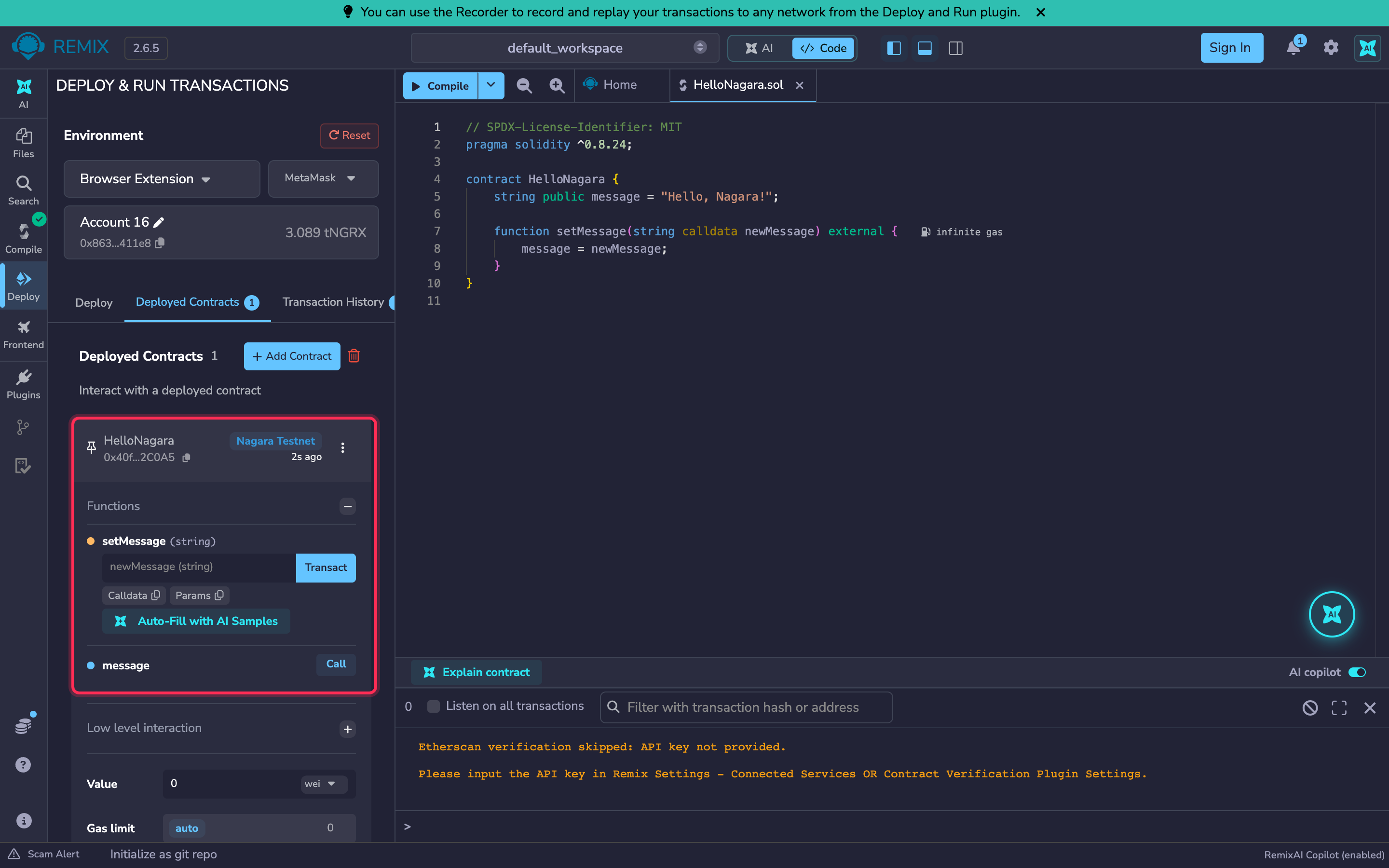
After a few seconds the contract appears under **Deployed Contracts**, with its address and the functions you can call.
{% hint style="success" %}
Congratulations — your contract is live on Nagara Testnet.
{% endhint %}
{% hint style="info" %}
The Remix terminal may print "Etherscan verification skipped: API key not provided". You can ignore it. See [Verify your contract](/verify-your-contract.md) to publish your source code on the Nagara explorer.
{% endhint %}
## 7. Interact with your contract
Remix shows two kinds of buttons:
* **Call** (blue) reads data. It is free and needs no confirmation.
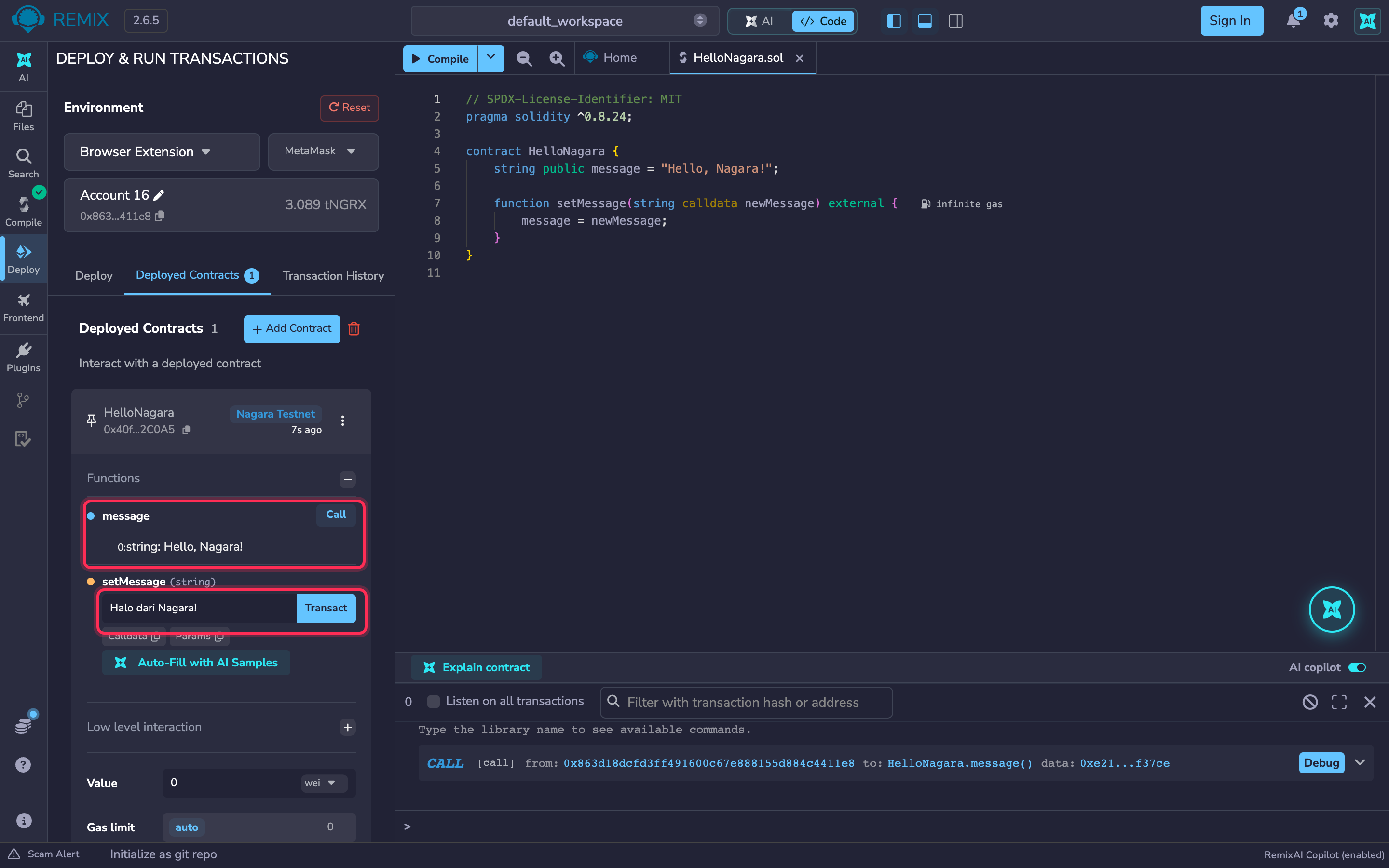
* **Transact** (orange) changes data. It is a transaction, so MetaMask asks you to confirm and you pay a small fee.
{% stepper %}
{% step %}
### Read the message
Click **Call** next to `message`. Remix shows `Hello, Nagara!`.
{% endstep %}
{% step %}
### Change the message
Type a new message into the `setMessage` field and click **Transact**.
Confirm the transaction in MetaMask.
{% endstep %}
{% step %}
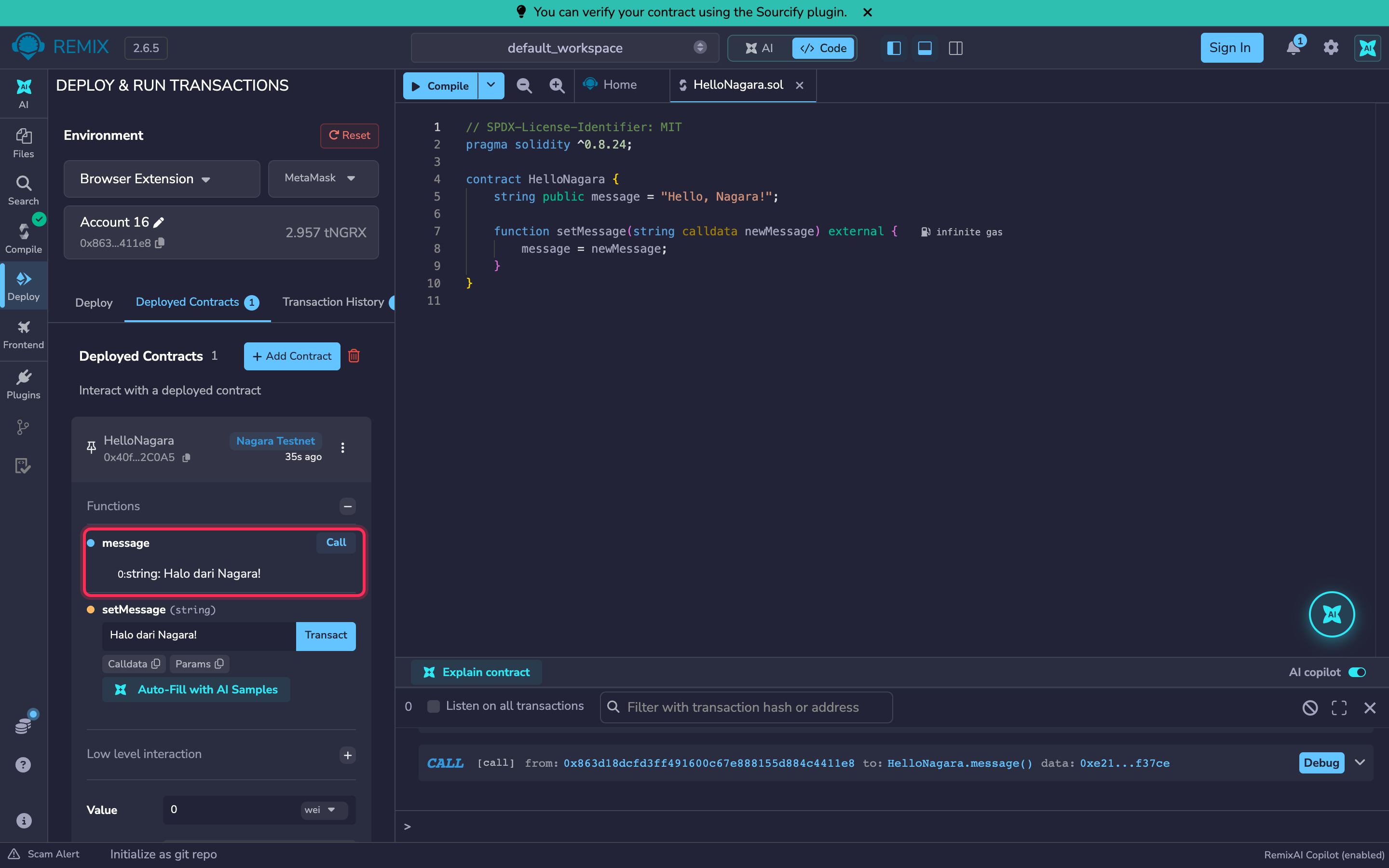
### Read it again
Wait a few seconds for the transaction to be included, then click **Call** on `message` again. It now returns your new text — stored on the blockchain.
{% endstep %}
{% endstepper %}
## 8. Find it on the explorer
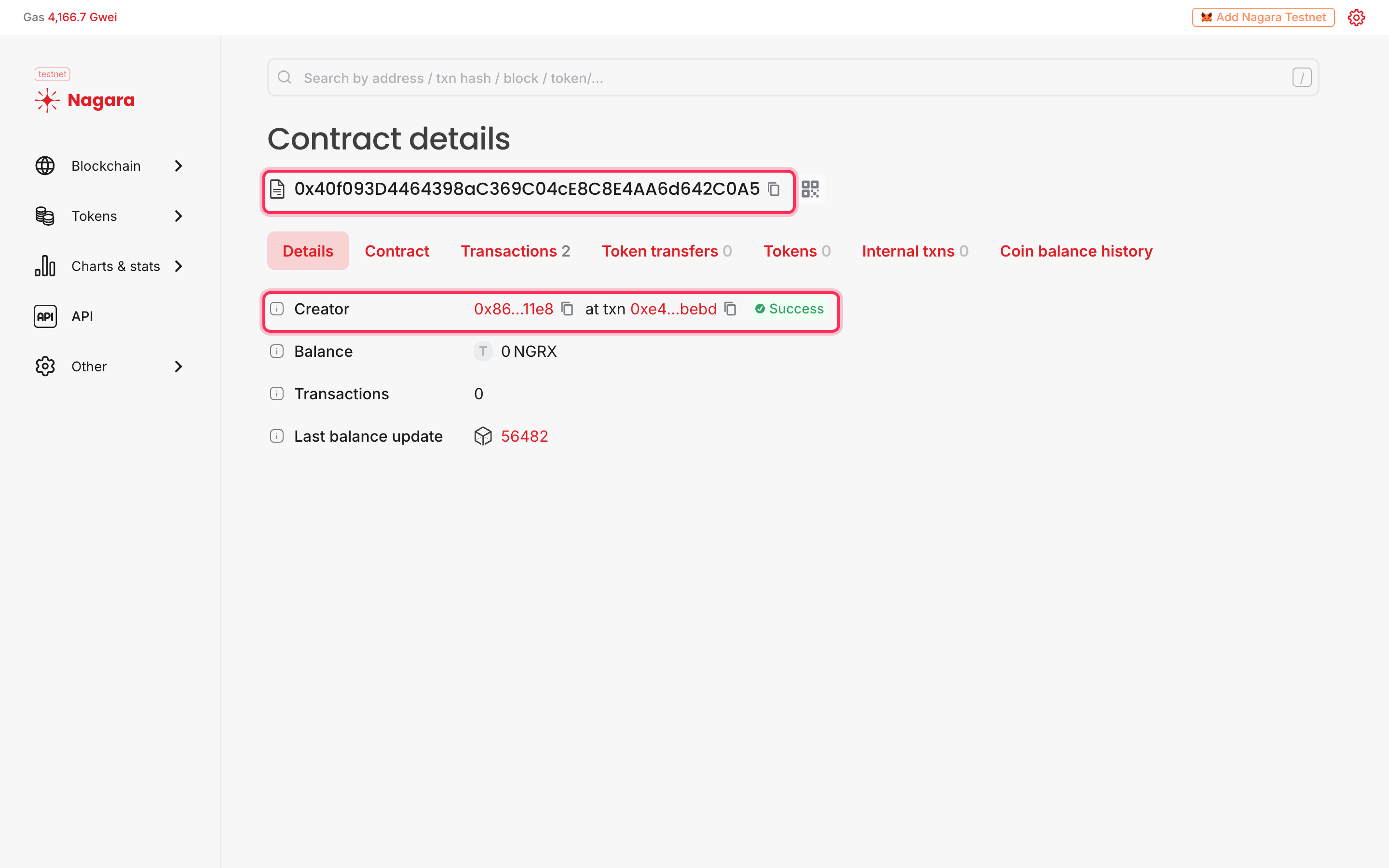
Copy the contract address from **Deployed Contracts** (the copy icon next to the address) and paste it into the search bar of the [testnet explorer](https://testnet-explorer.nagara.network). You will see the contract, who created it, and its transactions.
## Troubleshooting
* **The Deploy button does nothing.** Compile the contract first (step 4). After reloading Remix you need to compile again.
* **Remix shows the wrong network.** Switch MetaMask to Nagara Testnet for the Remix site, as described in step 5.
* **"Insufficient funds".** Get tNGRX from the [faucet](/get-testnet-tokens.md) and make sure MetaMask is on Nagara Testnet when you check the balance.
* **The contract disappeared from Remix after a reload.** It is still on the blockchain. Compile `HelloNagara.sol`, open **Deployed Contracts → Add Contract**, paste the contract address and click **Add**.
## Next steps
* [Learn Solidity](/learn-solidity.md) — free courses to go from here to real projects
* [Quickstart with Foundry](/quickstart-with-foundry.md) — the professional workflow with tests and scripts
* [Differences from Ethereum](/differences-from-ethereum.md) — read this before building anything serious
---
# Agent Instructions
This documentation is published with GitBook. GitBook is the documentation platform designed so that both humans and AI agents can read, navigate, and reason over technical content effectively. Learn more at gitbook.com.
## Querying This Documentation
If you need additional information that is not directly available in this page, you can query the documentation dynamically by asking a question.
Perform an HTTP GET request on the current page URL with the `ask` query parameter, and the optional `goal` query parameter:
```
GET https://docs.nagara.network/deploy-your-first-contract.md?ask=&goal=
```
`ask` is the immediate question: it should be specific, self-contained, and written in natural language.
`goal` is optional and describes the broader end goal you are ultimately trying to accomplish on behalf of the user. GitBook uses it to tailor the answer towards what is most useful for that goal.
The response will contain a direct answer to the question and relevant excerpts and sources from the documentation.
Use this mechanism when the answer is not explicitly present in the current page, you need clarification or additional context, or you want to retrieve related documentation sections.